Create
Create a code for a website or PDF
Choose what the code opens, name it and file it.
Click New QR code at the top of the QR codes list. Choose what people should see when they scan it, then click Create QR code.
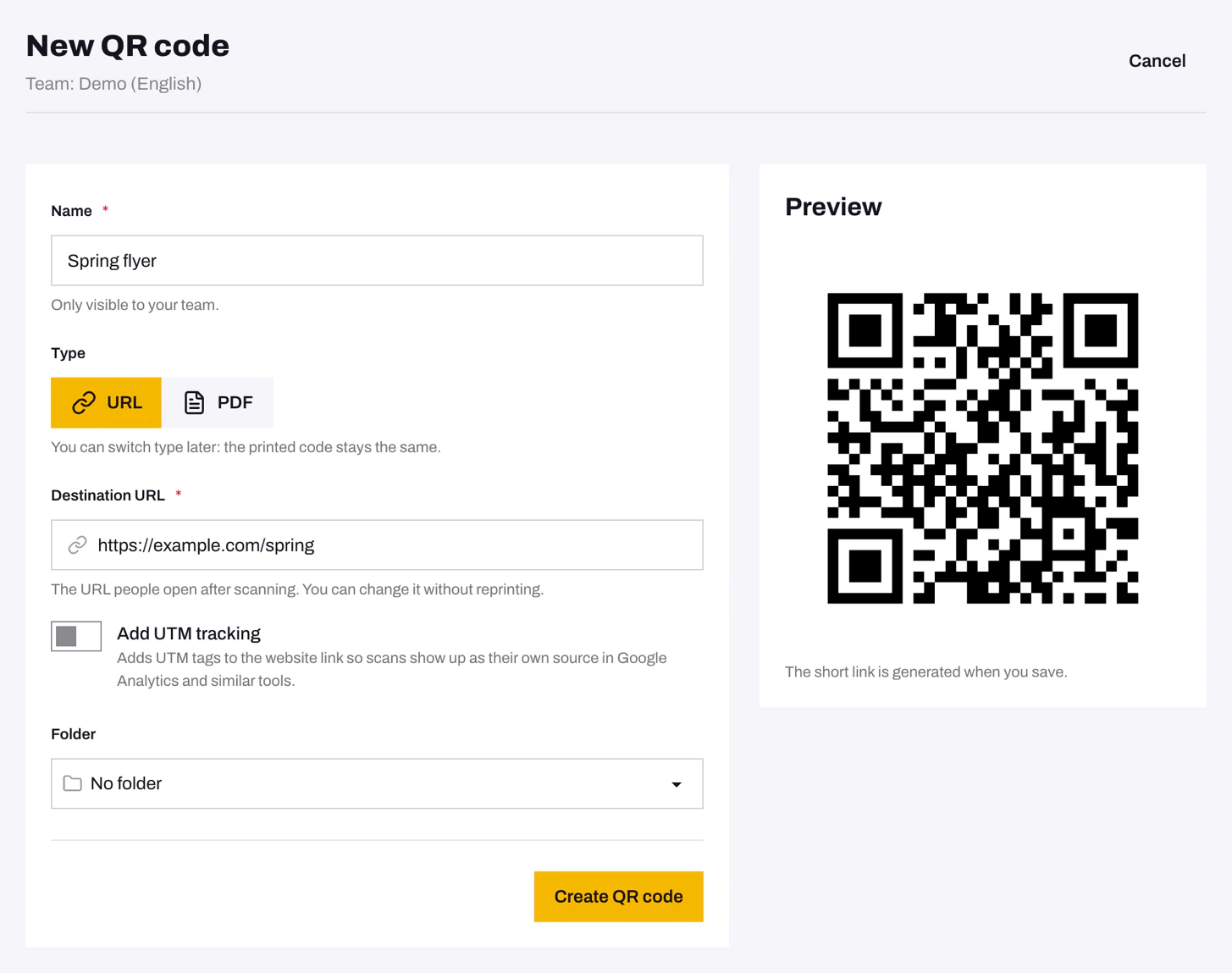
Link to a website
Keep Type on URL and paste the full address, starting with https://. To see these scans in Google Analytics as well, turn on UTM tracking.
Share a PDF
Switch Type to PDF and upload a file of up to 20 MB, such as a menu, a brochure or a manual. Scanning opens it straight in the phone's browser. Nothing needs to be installed.
Keep things tidy
- Name is only visible to your team. Name the code after where it's printed ("Shop window poster"), not after where it leads.
- Folder groups codes by campaign or location. If you click New QR code while viewing a folder, the code goes into that folder.
Make a series of similar codes
On the code’s page, open the three-dot More menu and choose Duplicate. The copy keeps the design, destination and folder and gets its own short link, so each copy's scans are counted separately. Use it for one code per table, store or poster. A copy of a paused code starts paused too; activate it before sharing.
Problems
- The New QR code button is greyed out. Your team has reached its code limit, shown above the QR codes list. Move unused codes to the trash.
- "The Destination URL field must be a valid URL." Paste the full address from your browser's address bar, starting with
https://. - I picked the wrong type. You can switch it later, and the printed code stays the same. See Change where a printed code goes.