Create
Make it look like your brand
Colours, shapes and a logo, without making the code hard to scan.
You'll find the design options on the code's form, next to the Preview. Change them whenever you like. Remember that codes already printed keep the old look.
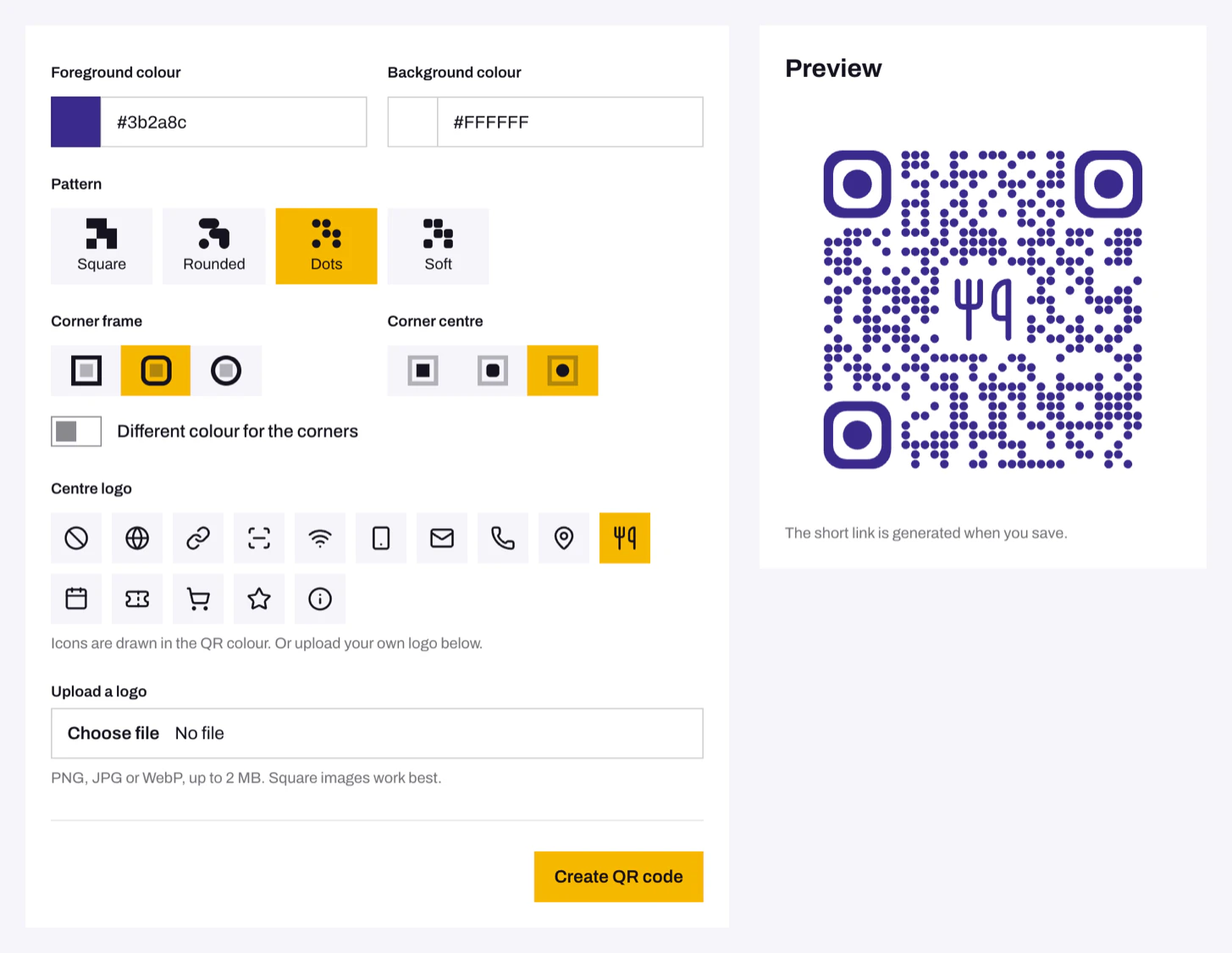
Colours
Set the Foreground colour and the Background colour. To give the three large corner squares their own colour, turn on Different colour for the corners.
Phones read dark on light best. Avoid light codes on a dark background.
Shapes
- Pattern changes the small dots: Square, Rounded, Dots or Soft.
- Corner frame and Corner centre change the three large squares.
Add a logo
- Under Centre logo, pick an icon such as Wi-Fi, Menu or Review. The icon is drawn in the code's colour.
- Or use Upload a logo (PNG, JPG or WebP, up to 2 MB). Square images work best.
- Turn on Use QR colour to draw your logo in a single colour, like a stamp.
These icons only change the design. For example, a Wi-Fi icon does not make the code connect to a network; the code still opens its website or PDF.
The code adds extra error correction when it has a logo to help it scan with part of the pattern covered. Always test the finished design before printing.
Use the same look for every new code
Team admins can set a Default QR design in Team settings › Edit default design. New codes start with it. Existing codes keep their own design.
Problems
- I see a "Low contrast" warning. Some phones may fail to read the code. Darken the foreground or lighten the background until the warning goes away.
- The preview disappeared. A colour isn't a valid hex value. Use the format
#1A2B3C.