Manage
Find and organise your codes
Search, folders and changes to many codes at once.
Use the search box to find a single code, and folders to keep groups of codes together. To change many codes at once, tick them and use the bar at the bottom.
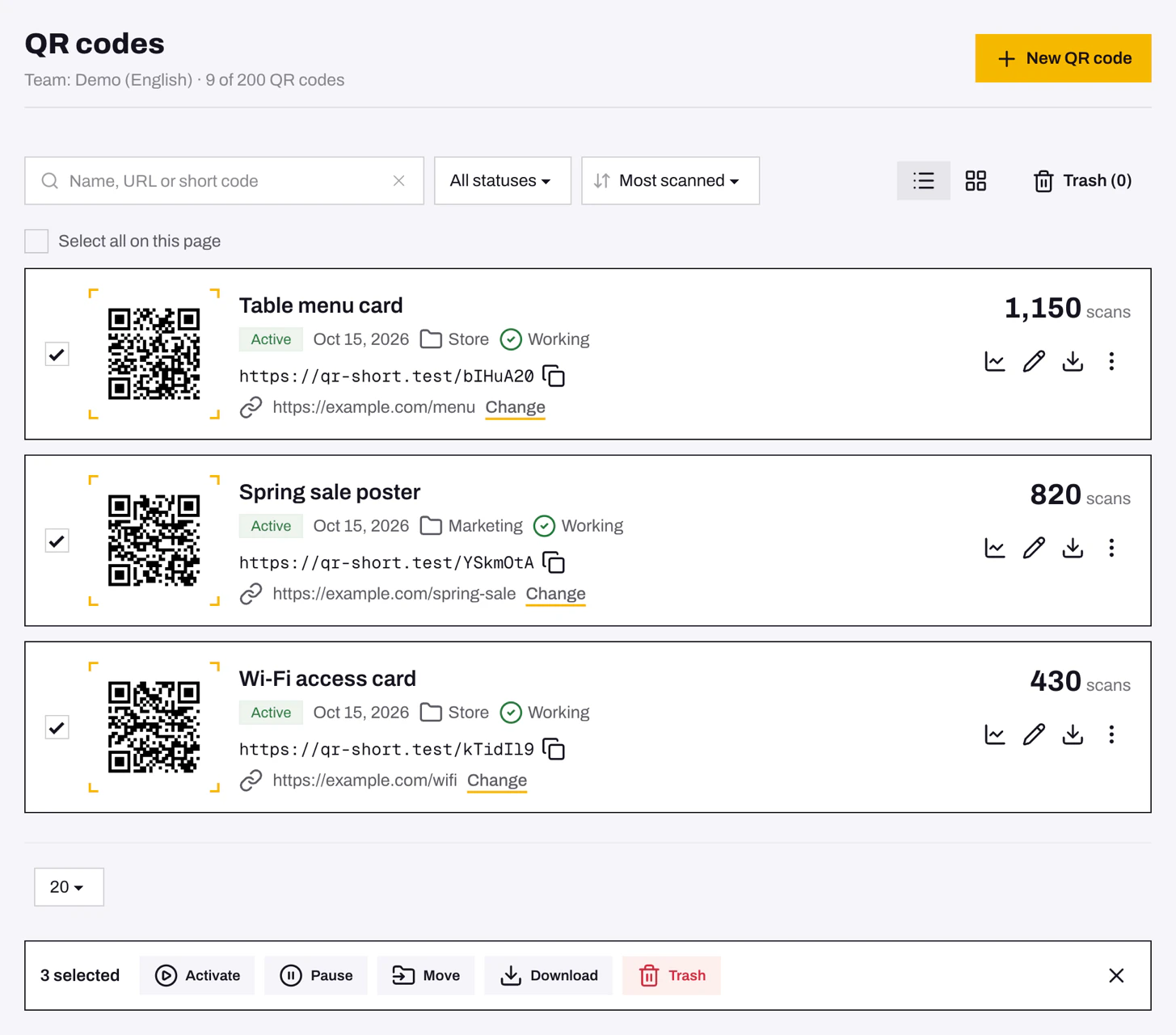
Find a code
Type a name, part of the URL, or the exact short code printed under the link. Narrow the list with the status filter (Active or Paused), or sort it by Most scanned. List and Grid switch the layout.
Use folders
- In the sidebar, under Folders, click New folder. Name folders by campaign, client or location.
- To file a code from the list, open the three-dot More menu and choose Move to folder, or pick a Folder when editing it.
- Click a folder to see only its codes, then Analytics for their combined results.
- Deleting a folder doesn't delete its codes. They move to No folder.
Change many codes at once
- Tick the codes, or use Select all on this page.
- In the bar at the bottom, choose Activate, Pause, Move, Download or Trash.
Selections only apply to the current page. To select more codes at once, show 100 per page.
Problems
- A code is missing from the list. Check that you're not inside a folder (click All QR codes). Also check the status filter and the Trash.
- "This team already has a folder with that name." Folder names must be unique within a team. Pick another name.
Still need help?
Email us and we will get back to you.